 AccuraBooks
 Open Purchase Orders Sorted by Week with Sent Date Report
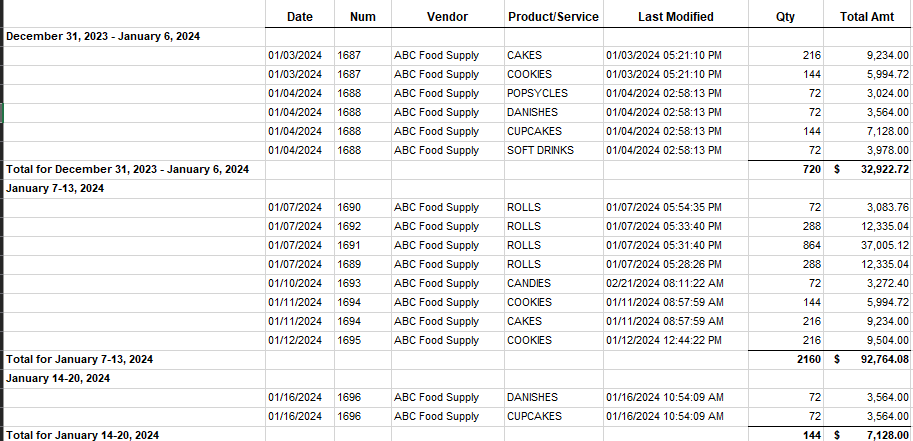
This article deals with creating an Open Purchase Orders Detail Report, but will display the following information:
- Sent date (to your supplier)
- Quantity of product ordered
- Purchase Order Number
- Posted date of purchase order
- Vendor Name
- Product Name
- Totals
Creating this report with exactly these columns of information can be useful if you sell products and are primarily wanting:
- To show all purchase orders that were submitted to your suppliers within a given week.
- To show the quantity of each different item that was ordered within each purchase order.
- To show exactly when you submitted each purchase order to your supplier (for each item ordered).
Knowing how many purchase orders you submit in a given week may help with supply/logistics controls and forecasts.
So, within QuickBooks Online, you can create this customized report by beginning with the basic report called “Open Purchase Orders Detail.” Then just click on the Customize button to choose your columns, as stated above, then Run the final report for your results.
Here is an example of this customized report:
Note: The “Last Modified” column will be the sent date/time, unless you have gone back in and changed this purchase order AFTER you submitted it to your supplier.
Note: AccuraBooks is a bookkeeping firm only, so please consult with your C.P.A. for verification and clarification about the contents of this article.